The ideaYou are the librarian
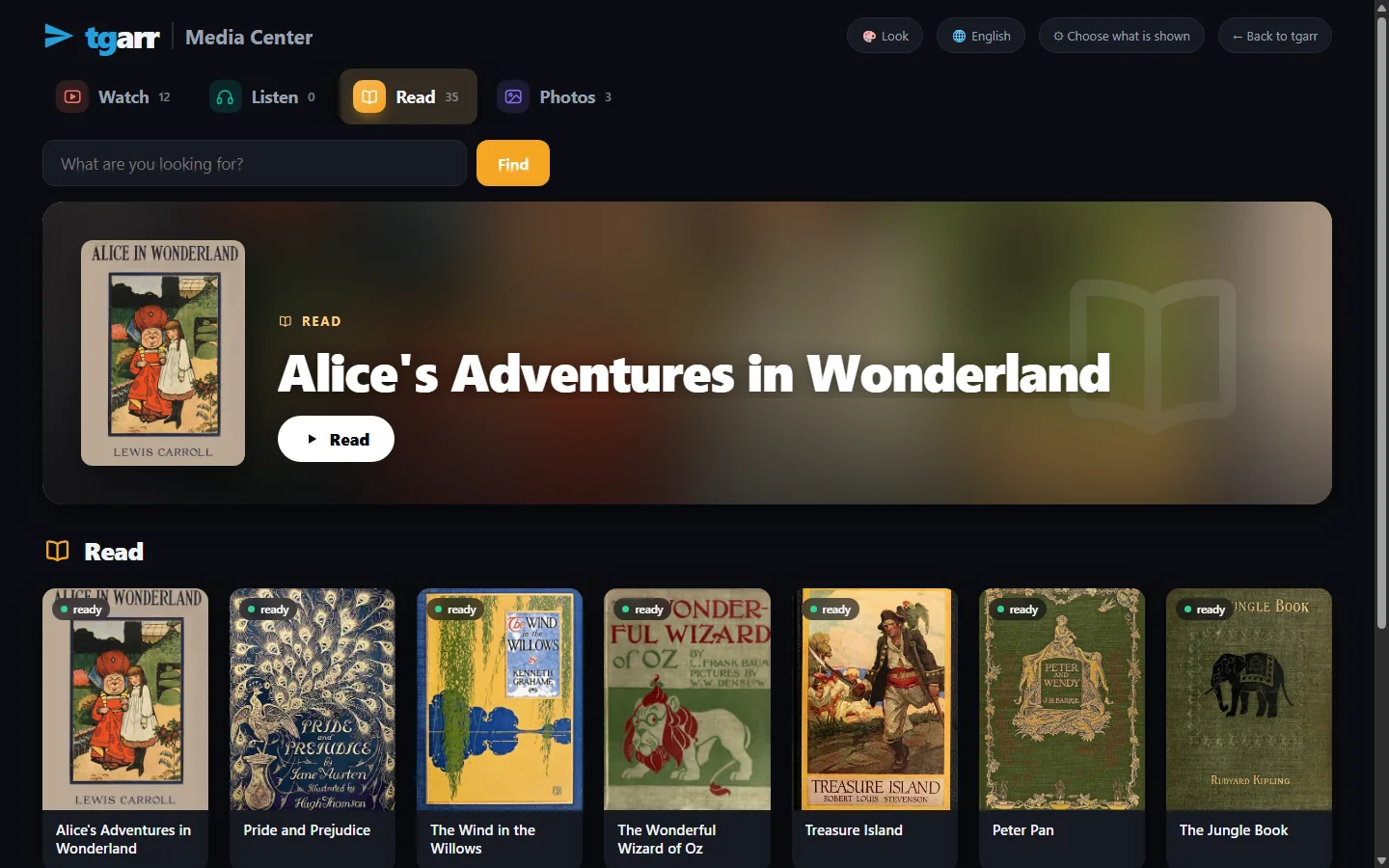
Most screens at home are built to keep a child watching. tgarr is the other way round: it shows only what a parent ticked, in the order it was added, and stops when the time you set is up. There is no recommendation, no autoplay into something else, no comment section and nothing to buy.
A list you make
Tick whole collections or single items. What is not ticked does not exist for a browser without your PIN - not in search, not by typing an address.
Time that ends
Opening hours for school days and weekends, minutes a day, and a break after so long in one go. When it is time, the page says so and waits.
Each child their own
A PIN per child: time is counted per person on whatever device they pick up, and an older child can have rules of their own.
You can see what was used
Time per child and what was opened, kept on your machine only. A way to talk about it, not a report sent to a company.
ReadingBooks that open as they are - and read aloud
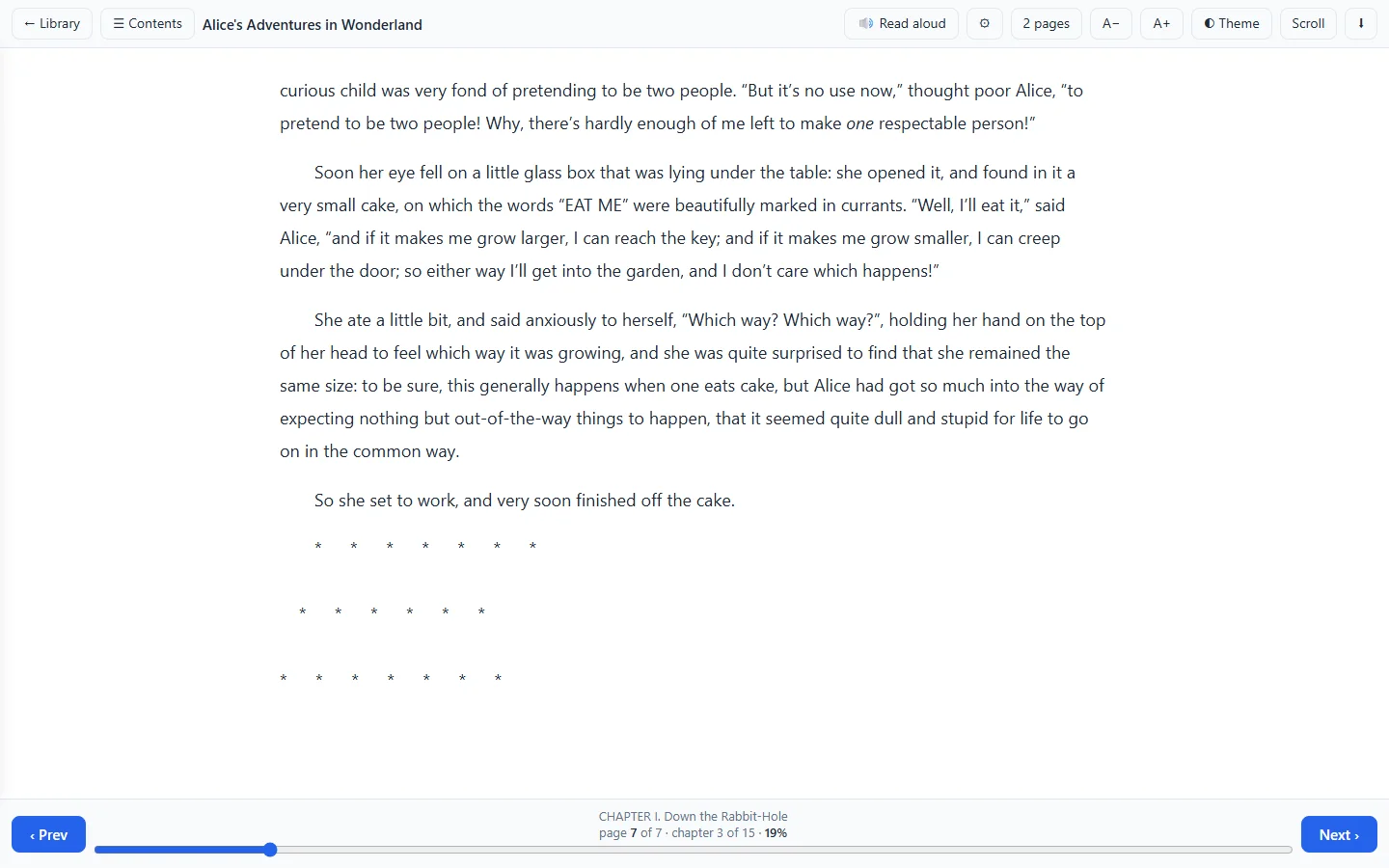
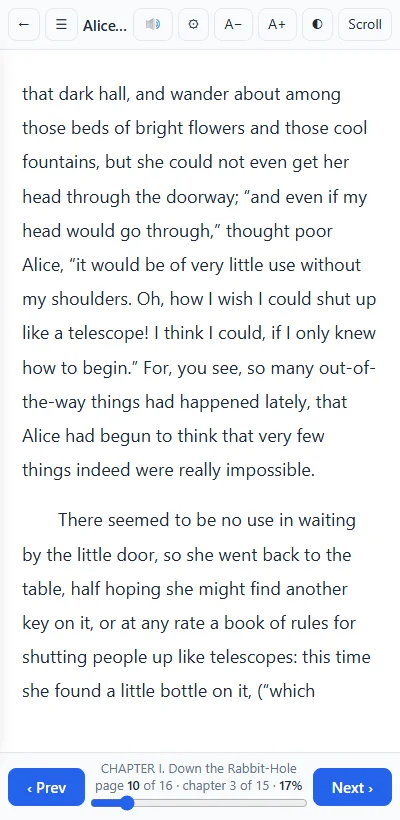
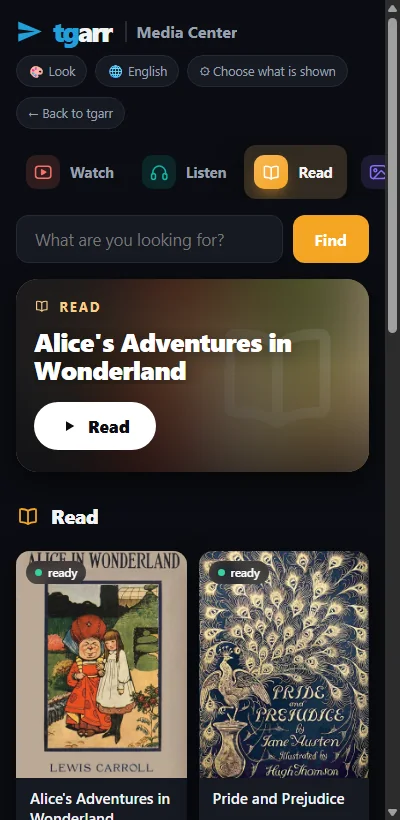
A book, a document, a slide deck or a sheet opens in tgarr's own reader the moment it is there: type a child can make larger, pages that fit a phone, a dark page for the evening, and Read aloud.
Whatever format it came in
EPUB, Kindle books (.mobi .azw3), PDF, scanned books (.djvu), plain text, Word and OpenDocument, Markdown, comics (.cbz .cbr). Nothing to convert first.
Read aloud, on your own machine
With the optional voice installed, tgarr reads in Chinese and in English without sending a word anywhere - good for a child who follows the text while listening, and for a second language. Otherwise the device's own voices are used.
School material too
Worksheets as PDF, a teacher's slides (.pptx), a table (.xlsx .csv), a coding lesson as a Jupyter notebook: they sit on the same shelf and open the same way.
Listening and watchingAudiobooks, music, documentaries
Audiobooks and music
A player with a queue, and lyrics where a song has them. Audiobooks have a shelf of their own.
Films that just play
A film the device cannot decode is converted while it is watched, so the old tablet plays what the new television plays. Playback goes on where it stopped.
The family's photos
Your own pictures as a gallery and a slideshow - on the television too. Phone formats (HEIC) are shown like any other.
MaterialWhere the library comes from
tgarr comes empty. You fill it from sources you choose:
- Your own files. Upload them in the browser or point tgarr at a folder: e-books you bought without copy protection, scans, recordings, home videos, school hand-outs.
- The Internet Archive - no account at all. Public-domain books, LibriVox audiobooks read by volunteers, documentaries, classic films and old radio, given away by archive.org to anybody. Search it inside tgarr and press Get. How tgarr uses the Archive.
- Telegram channels and Usenet, if you use them: tgarr indexes what you follow, and you tick what goes on the children's list.
At homeEvery screen, every language
Television, tablet, phone
An app for Android TV, Google TV and Fire TV driven by the remote; an icon for a tablet's home screen that opens the Media Center alone; any browser otherwise.
Twelve languages
English, 简体中文, 繁體中文, Español, Français, Deutsch, Português, Русский, 日本語, 한국어, עברית, العربية. Each screen follows its own browser - grandparents and children can each read it in theirs.
A look for each age
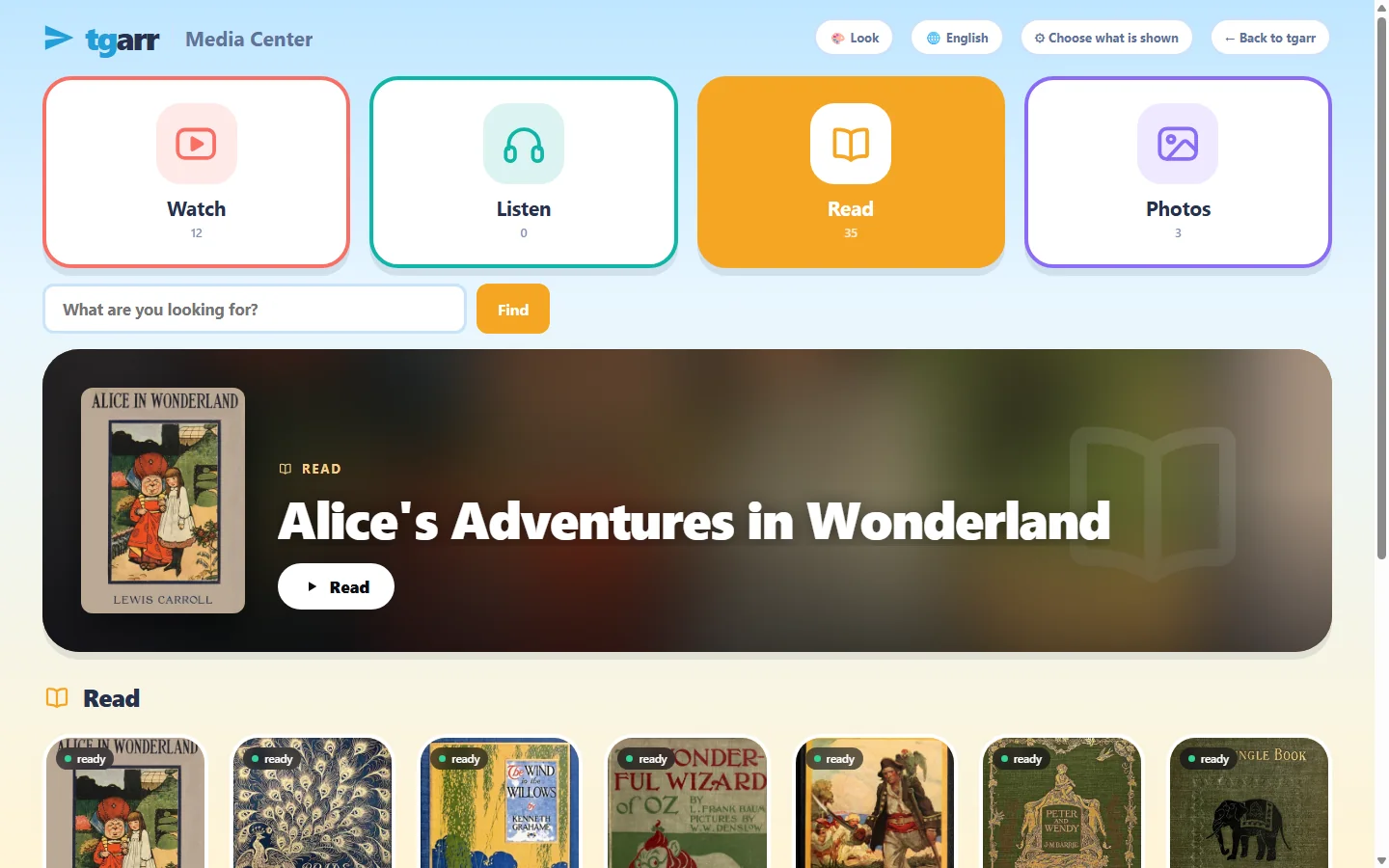
Eight looks: among them Playroom with big round cards for the youngest, Cinema for the television, and one with high contrast and large type.
It stays at home
tgarr runs on your own computer. The children's list, the time used and what was opened are kept there and nowhere else.
InstallPut it on a computer that stays on
Windows 10 / 11
Download one file and double-click it - no terminal. It sets up WSL2, puts tgarr inside and opens the browser when it is done.
macOS
Open the zip and right-click install-tgarr.command → Open. It needs Homebrew; the installer adds Colima and puts tgarr inside. This installer has not yet been run from end to end on a real Mac.
Linux and NAS
One line on Linux:
curl -fsSL https://raw.githubusercontent.com/tgarrpro/tgarr/main/install/install.sh | bashOn Synology, QNAP, Unraid, TrueNAS or CasaOS: two files and docker compose up -d. On a NAS
Television
Android TV, Google TV, Fire TV: this 20 kB app is a frame around the Media Center of the tgarr at home, driven by the remote.
No account of any kind is needed to begin. It takes about 3 GB of disk and 4 GB of memory to spare, and keeps itself up to date. The full instructions.
Set it upAn afternoon, once
- Install tgarr on a computer that stays on - see above.
- Add material: upload your files, or search the Internet Archive on the Archive page and press Get.
- Open Media Center & PIN, set your PIN, and tick what the children may see.
- Set the time rules, and give each child a PIN of their own if you want time counted per child.
- Open the address on the children's screens. They get the Media Center; you keep everything else behind the PIN.
QuestionsWhat parents ask
Does a child need an account, an e-mail address or an app store?
No. A child opens the address of your tgarr in any browser and gets the Media Center. There is nothing to sign up for. On a tablet you can add an icon to the home screen that opens the Media Center alone; on a television there is a small app for Android TV, Google TV and Fire TV.
Can a child get from the Media Center to the rest of tgarr, or to the open internet?
Not through tgarr. Once you set a PIN, every browser that has not entered it sees only the Media Center, and only what you ticked for it. The Library, the settings, search and everything else answer with a refusal - also when the address is typed by hand. tgarr does not filter the rest of the internet; that is a job for the device or the router.
Where does the material come from?
From where you choose. Your own files - upload them or point tgarr at a folder. The Internet Archive, which gives away public-domain books, LibriVox audiobooks, documentaries and classic films to anybody, with no account. And, if you use them, Telegram channels you follow and Usenet. tgarr comes empty; nothing is pre-loaded.
Can it read a book aloud?
Yes. The reader has a Read aloud button for books, documents and PDFs. With the optional voice installed, the reading is done on your own machine, in Chinese and in English, and no text is sent anywhere. Without it, the reader uses the voices the device itself has, in whatever languages those are.
How do the time rules work?
You set opening hours for school days and for weekends, minutes a day, and a break after so many minutes in one go. Time is counted only while a page is in front or something is playing. Give each child a PIN of their own and time is counted per child on whatever device they pick up; without that it is counted per device.
Can I see what was opened?
Yes. tgarr keeps a record of the time used and of what was opened in the Media Center, per child or per device. It is kept on your machine only and shown on the Media Center's settings page.
Which languages does it speak?
The pages come in twelve languages: English, Simplified and Traditional Chinese, Spanish, French, German, Portuguese, Russian, Japanese, Korean, Hebrew and Arabic. Each screen follows its own browser, so a grandparent's tablet and a child's can show different languages over the same library.
What does it cost?
Nothing. tgarr is open source under the MIT licence and runs on a computer you already have - a Windows or Mac desktop, a small Linux box or a NAS.