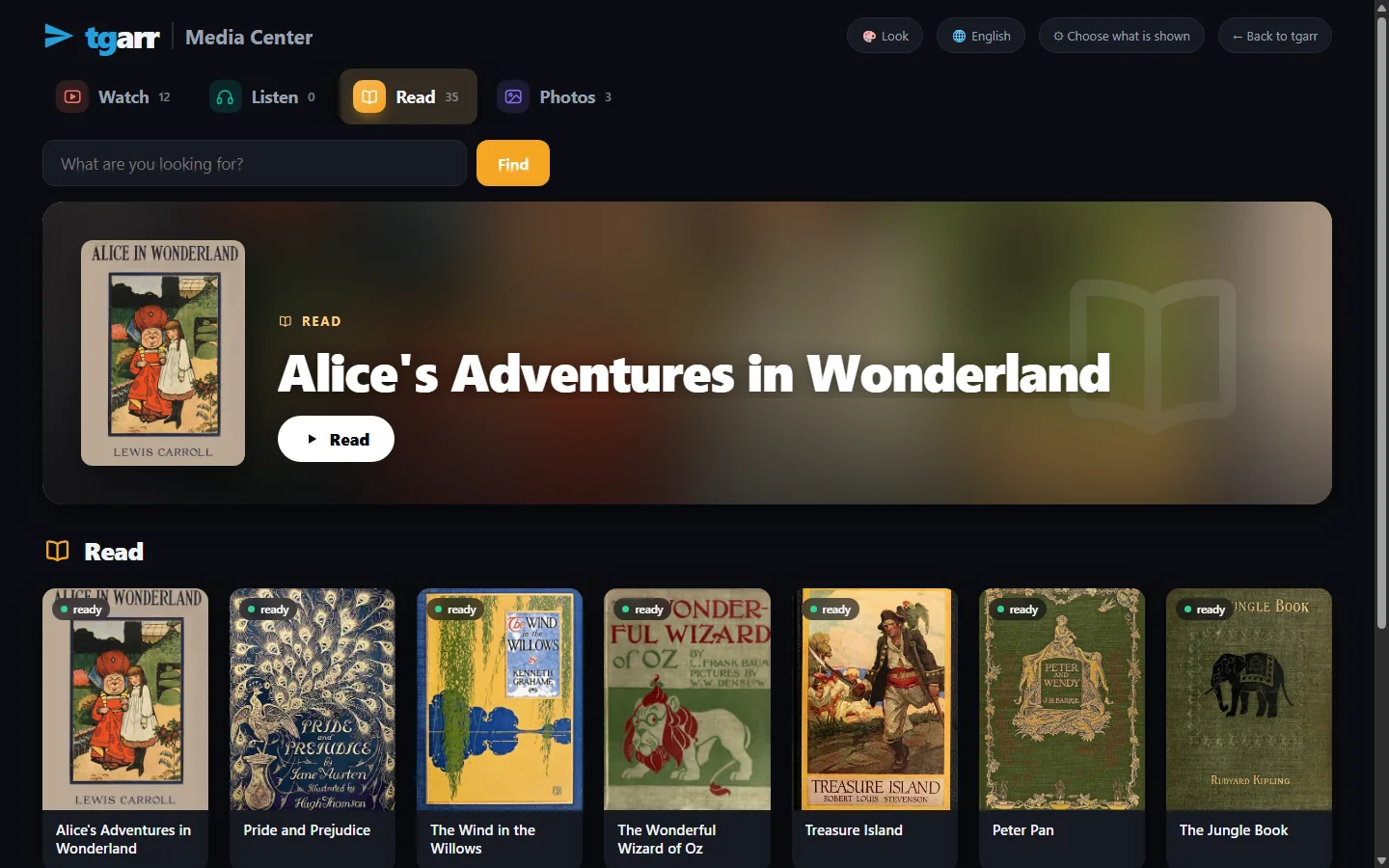
The playerWhat it does
The Music page is a list of sound files with a player along the bottom. Click a row and it plays; when a file ends, the next row starts.
Play, seek, go on
Play and pause, previous and next, a bar to seek on, shuffle. Previous first goes back to the start of the file when it has run for more than four seconds.
Lyrics
The Now playing view shows the cover, the lyrics and a moving spectrum. Timed lyrics are lit line by line, and a click on a line jumps there. Lyrics and spectrum can each be switched off.
Favourites and download
A heart on every row and in the player; a filter shows only the favourites. Every file can be downloaded as it is.
Finding things
Search by title, performer or file name. Sort by best, recent, longest or largest. Narrow the list by language, by source - Telegram, Usenet, Internet Archive, My files - or to what is already saved on your machine.
Keys
Space play and pause, n next, p previous, f favourite, l the Now playing view, Esc closes it.
On a phone
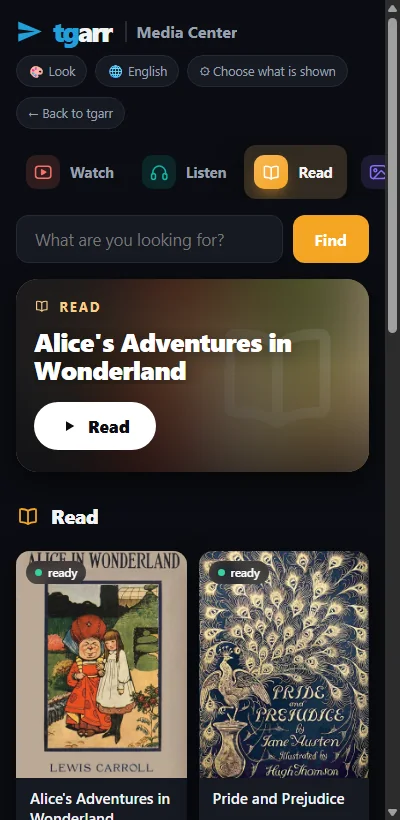
The same page in the phone's browser; the player folds onto two rows. Title, artist and cover are handed to the device's media controls. There is no app to install.
AudiobooksA shelf of their own
Books that are listened to stand apart from songs: the Audiobooks button on the Music page and in the Library opens their shelf.
Told from music by what they are
Not by length - an hour of sound is as often a concert. A file is an audiobook when it is an .m4b, when it lies in a folder called audiobooks, when it was fetched from an Audiobooks shelf, or when its name, title or album says so: audiobook, unabridged, 有声书, 听书, 评书.
In order
The shelf starts sorted In order: book by book - by album, else by folder - and inside a book by the first number in each file's name. So chapter 2 comes after chapter 1, and the player goes on from file to file.
The place is kept - once
On this shelf the player notes the file and the second every five seconds and returns there next time. It is kept in the browser you listen in, and it is one place: the last file you heard, not one for each book.
MaterialWhere audiobooks come from
- The Internet Archive - no account. The Archive page has an Audiobooks shelf that searches the LibriVox collection: public-domain books read by volunteers. Press Get and tgarr fetches one playable set of the item's files (MP3 first, when the item has it) and shelves it as an audiobook. A separate shelf, Music and radio, covers the Archive's other recordings. How tgarr uses the Archive.
- Your own files. On My files, drop files in the browser or choose a whole folder. An
.m4b, or a file whose name, title or album calls it an audiobook, goes to the audiobook shelf by itself. - Usenet, if you have a provider: the Usenet page has an Audiobooks shelf of its own, filled from the audiobook newsgroups and from posts named as audiobooks. tgarr fetches those itself. About Usenet.
- Telegram channels you follow: the sound files they carry are indexed, and a click fetches one.
tgarr comes empty and recommends nothing. What you add is yours to choose and to answer for.
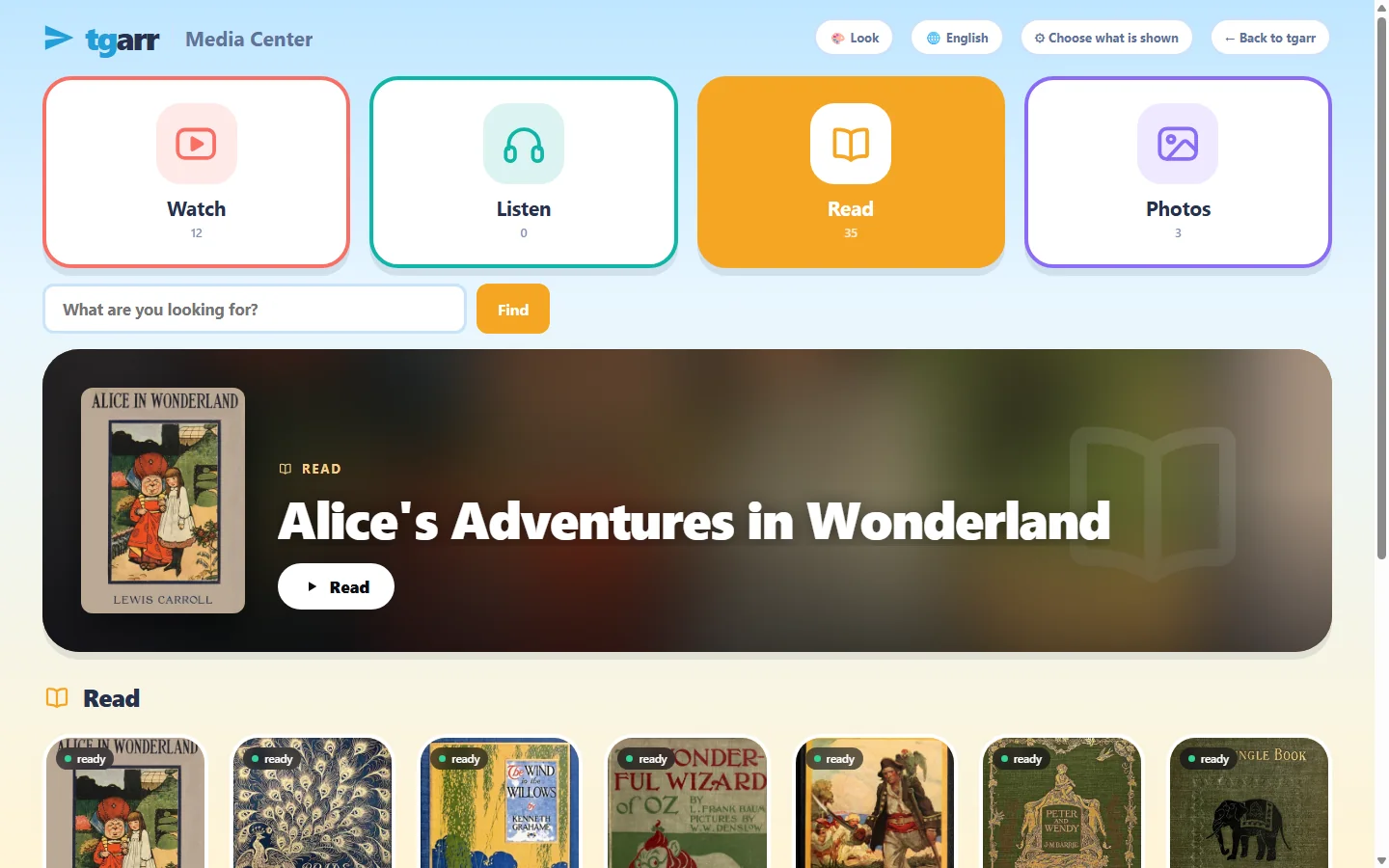
For childrenThe Listen shelf of the Media Center
Set a PIN and every browser without it gets the Media Center only. Its Listen shelf shows the sound files a parent ticked - whole collections or single files - as large cards, with a box to search them. Nothing else can be reached, also not by typing an address.
Time rules
Opening hours for school days and weekends, minutes a day, a break after so long in one go. They hold for listening as for everything else. For family learning.
A record you keep
What was opened in the Media Center is noted per child or per device, on your machine only.
Simpler than the Music page
On the Listen shelf music and audiobooks stand together - what is already on your machine first, then the newest - and each file opens by itself with the browser's own audio controls. It does not go on to the next chapter by itself, and it shows no lyrics. The player described above is on the Music page, behind the PIN.
The other way to listenRead aloud
A book that exists only as text can be listened to as well. tgarr's reader has a Read aloud button for e-books and PDFs: it reads from the page you are on and turns the pages as it goes. With the optional voice installed, the reading is done on your own machine in Chinese and in English; otherwise the browser's own voices are used. Voice and speed can be chosen. In the Media Center this works for a child too.
HonestlyWhat it does not do
- No place per book, and none across devices. One place, in one browser, as said above. Songs on the Music page keep no place at all.
- No chapters inside a file. A single
.m4bof twelve hours is one long bar to seek on. Books that came as one file per chapter are in order. - No sleep timer, no speed control, no bookmarks.
- No phone apps. It is a web page. There is nothing to download a book into for a journey, other than the file itself.
- No pages for authors, narrators or series. Books are grouped by album or folder in one list, a hundred files to a page.
- No podcasts.
If audiobooks are the main thing you want, Audiobookshelf is the specialist: phone apps, a sleep timer, chapters, and the place kept across devices. tgarr suits a household that wants audiobooks beside its films, books and photos, behind one children's list. How tgarr compares.
InstallPut it on a computer that stays on
Windows 10 / 11
Download one file and double-click it - no terminal. It sets up WSL2, puts tgarr inside and opens the browser when it is done.
macOS
Open the zip and right-click install-tgarr.command → Open. It needs Homebrew; the installer adds Colima and puts tgarr inside. This installer has not yet been run from end to end on a real Mac.
Linux and NAS
One line on Linux:
curl -fsSL https://raw.githubusercontent.com/tgarrpro/tgarr/main/install/install.sh | bashOn Synology, QNAP, Unraid, TrueNAS or CasaOS: two files and docker compose up -d. On a NAS
Television
Android TV, Google TV, Fire TV: this 20 kB app is a frame around the Media Center of the tgarr at home, driven by the remote.
No account of any kind is needed to begin. It takes about 3 GB of disk and 4 GB of memory to spare, and keeps itself up to date. The full instructions.
QuestionsAsked often
Does it remember where I stopped in an audiobook?
In part. On the Audiobooks shelf the player notes the file and the second every five seconds, in the browser you listen in, and goes back there when you open the shelf again. It is one place - the last file you heard - not one per book, and it does not follow you to another device. For a place kept per book on every device, Audiobookshelf is the tool.
Can it play LibriVox audiobooks?
Yes. The Archive page has an Audiobooks shelf that searches the LibriVox collection of the Internet Archive. Press Get and tgarr fetches the recording - the MP3 files when the item has them - and puts it on the audiobook shelf. No account is needed for that.
How does tgarr tell an audiobook from music?
Not by length. A sound file is an audiobook when it is an .m4b, when it lies in a folder called audiobooks, when it was fetched from the Audiobooks shelf of the Archive or the Usenet page, or when its name, title or album says so (audiobook, unabridged, 有声书, 听书, 评书). Everything else is music.
Where do the lyrics come from?
From the file's own tag when it is a FLAC that carries one. Otherwise tgarr asks lrclib.net, a free lyrics service, and sends it the title, the artist and the length of the track - nothing about you. The answer is kept, so each song is asked for once. Timed lyrics are lit line by line; a click on a line jumps there.
Is there a sleep timer, a speed control or chapters?
No. The player has play, pause, previous, next, shuffle, a bar to seek on, favourites and download. It has no sleep timer, no speed control and no chapter list inside a single .m4b file. A book that came as one file per chapter is played file after file, in order.
Can a child listen without reaching the rest?
Yes. With a PIN set, a browser without it sees only the Media Center, and on its Listen shelf only the sound files a parent ticked. Time rules apply. There each file opens by itself with the browser's own audio controls - it does not go on to the next chapter on its own.